Before you start
Vector DataBridge connects to your boat’s NMEA 2000 network and pairs with the Vector app over Bluetooth. The app sends Wi-Fi credentials to the DataBridge so it can connect to the internet and send vessel data.
Install the Vector app and have your login information ready.
Keep your phone close to the DataBridge during setup.
Have the boat Wi-Fi or hotspot name and password ready.
Step 1 — Create an account or log in
Open the Vector app. Log in if you already have an account. If you are new to Vector, tap Create Account.
- Open the Vector app.The welcome screen includes email, password, remember me, forgot password, and login.
- Create your account.Enter your email, first name, last name, password, confirm password, and code if required.
- Tap Create Profile.The app will send an email verification message.
Log in or create account
name@example.com
••••••••••
Don’t have an account? Create Account
Step 2 — Verify your email
After creating an account, Vector sends an email verification message. Open the email and click Verify Email. The verification link expires in 2 days.
- Check your inbox.Look for an email with the heading Email Verification Required.
- Click Verify Email.This activates your account and completes registration.
- Return to the app.Tap Verification Done. If you do not receive the email, tap Resend Email.
Step 3 — Set up your profile and vessel
Complete your profile, then add your vessel. The vessel profile tells Vector which boat the DataBridge belongs to.
Set up your profile
- Add your phone number.This helps with account setup and support.
- Add a profile photo if desired.You can update this later.
- Confirm your name and tap Next.Continue to your profile and vessels area.
Add your vessel
- Open the Vessels tab.If your account does not have a boat yet, tap Add Vessel.
- Enter vessel details.Add boat name, boat make, home port, vessel photos, length overall, draft, and hull color.
- Save the vessel.Tap the checkmark to save. You can update vessel details later.
Step 4 — Connect DataBridge
The app will guide you through connecting the DataBridge. Keep your phone close to the device during setup.
- Open DataBridge setup.The app may say: “Set up your data bridge to sync real-time information — or skip and add it anytime.”
- Tap Connect & Continue.Stay close to the helm or electronics box where the DataBridge is installed.
- Allow Bluetooth.If iOS asks “Allow VECTOR to find Bluetooth devices?”, tap Allow.
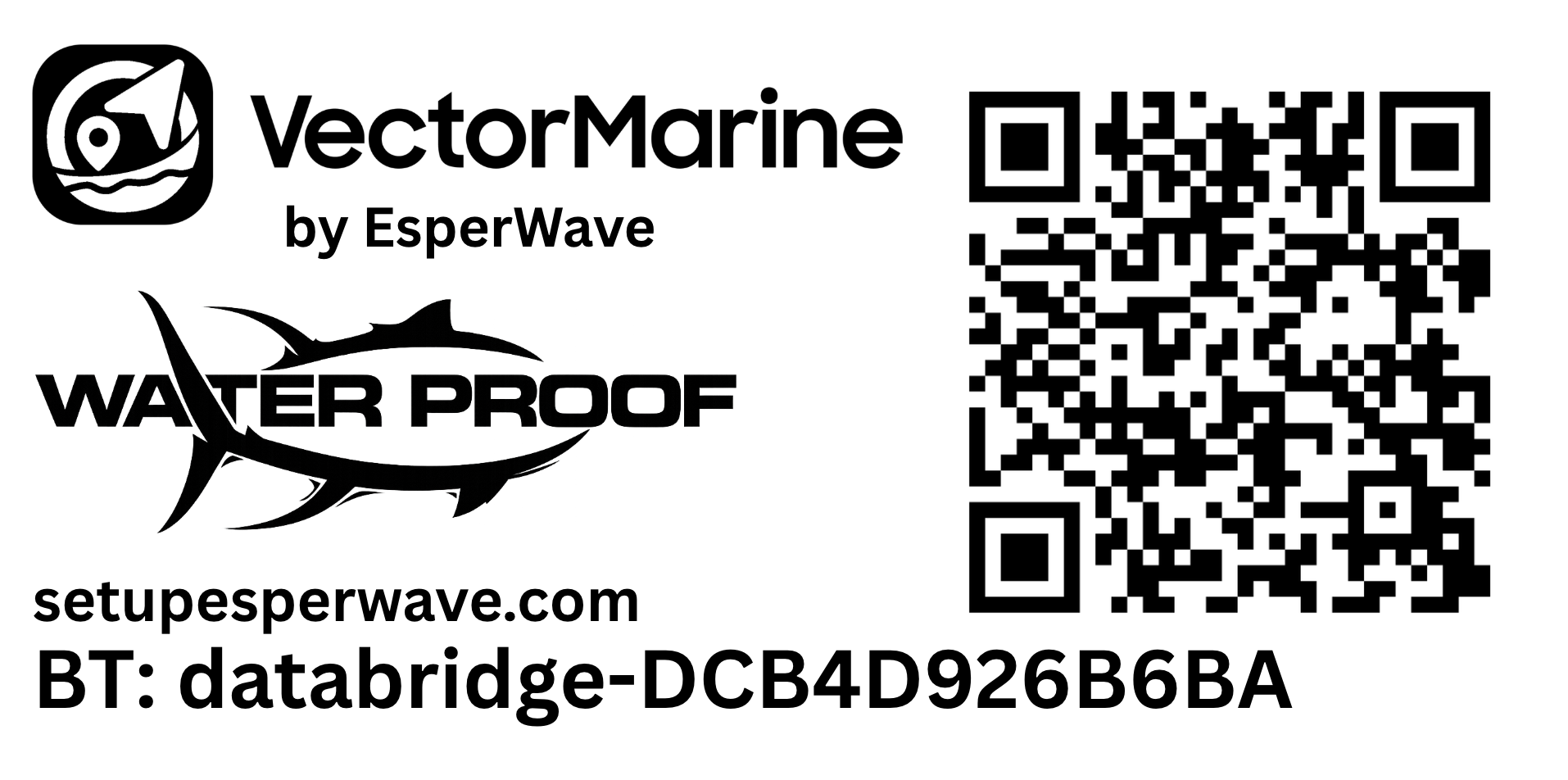
- Select your DataBridge.Choose the device that matches the code printed on your label.
Select your DataBridge
The app scans for nearby DataBridge devices. The name should match the code on your label and will look like:
databridge-28372F850332databridge-DCB4D9266FB6databridge-XXXXXXXX
If multiple devices are listed, choose the one that matches your printed code. A stronger signal usually means the device is closer to your phone.
Step 5 — Send Wi-Fi credentials
The app sends Wi-Fi credentials to the DataBridge so it can connect to the internet.
- Confirm the Wi-Fi name.Make sure the SSID is the boat Wi-Fi or hotspot you want the DataBridge to use.
- Enter the password.Check capitalization and special characters.
- Keep Apply immediately turned on.This tells the DataBridge to use the new Wi-Fi right away.
- Tap Send to DataBridge.Keep your phone close while credentials are sent.

Connected: office • 10.0.0.70. Tap Continue.Step 6 — Check System Status
System Status confirms whether the DataBridge is connected and transmitting. Use the Status, Device, and Network areas to check Bluetooth, Wi-Fi, server connectivity, and data flow.
- Check Bluetooth.If Bluetooth is not connected, move closer to the DataBridge and reopen System Status.
- Check Network.If the Network tab shows a Wi-Fi name and IP address, the DataBridge is connected to Wi-Fi.
- Check Live Snapshot.If the latest snapshot is available, the DataBridge is reaching the server.

Troubleshooting
Bluetooth is not connected
- Move your phone closer to the DataBridge.
- Stand near the helm or electronics box during setup.
- Make sure Bluetooth is enabled on your phone.
- Reopen the Vector app.
- Tap Rescan.
- Select the DataBridge that matches the code printed on your label.
Bluetooth range can be reduced by fiberglass, console doors, metal hardware, electronics boxes, or distance.
The app cannot find my DataBridge
- Confirm Bluetooth is enabled.
- Move closer to the DataBridge.
- Tap Rescan.
- Power cycle the DataBridge or boat electronics.
- Confirm the device code matches the label:
databridge-XXXXXXXX.
I need to resend Wi-Fi credentials
- Open the DataBridge setup or System Status screen.
- Tap Wi-Fi or Network.
- Confirm the Wi-Fi name is correct.
- Enter the password again.
- Leave Apply immediately turned on.
- Tap Send to DataBridge.
- Keep your phone close to the DataBridge while credentials are sent.
Wi-Fi credentials failed
- Confirm the Wi-Fi name.
- Re-enter the password.
- Keep your phone close to the DataBridge.
- Tap Send to DataBridge again.
- Use a 2.4 GHz Wi-Fi network if applicable.
Live Snapshot says Server Connectivity or Unavailable
- Open System Status and check the Network tab.
- If there is no IP address, the DataBridge is not connected to Wi-Fi.
- Tap Wi-Fi or Network to reopen Wi-Fi setup.
- Re-enter the Wi-Fi password and tap Send to DataBridge.
- Wait a minute and refresh System Status.
No vessel data is showing
- Confirm the DataBridge is connected.
- Confirm the boat electronics are powered on.
- Confirm the NMEA 2000 network is powered.
- Confirm GPS, depth source, chartplotter, or sensors are turned on.
- Available data depends on what the boat broadcasts on NMEA 2000.
Chartplotter says bus off or network issue
This usually means the NMEA 2000 backbone is not properly powered or terminated. A healthy backbone needs one power tee, exactly two terminators, and a proper tee/drop cable layout.
I need help
Contact support and include your device serial number, DataBridge code, boat name, chartplotter brand/model, a screenshot of the app error, and a photo of the DataBridge/NMEA connection.
Email: support@esperwave.com
Support information
Printed on the device label as SN.
Printed on the device label as CODE. Example: databridge-XXXXXXXX.
Scan the QR code on your device label to return to this page.